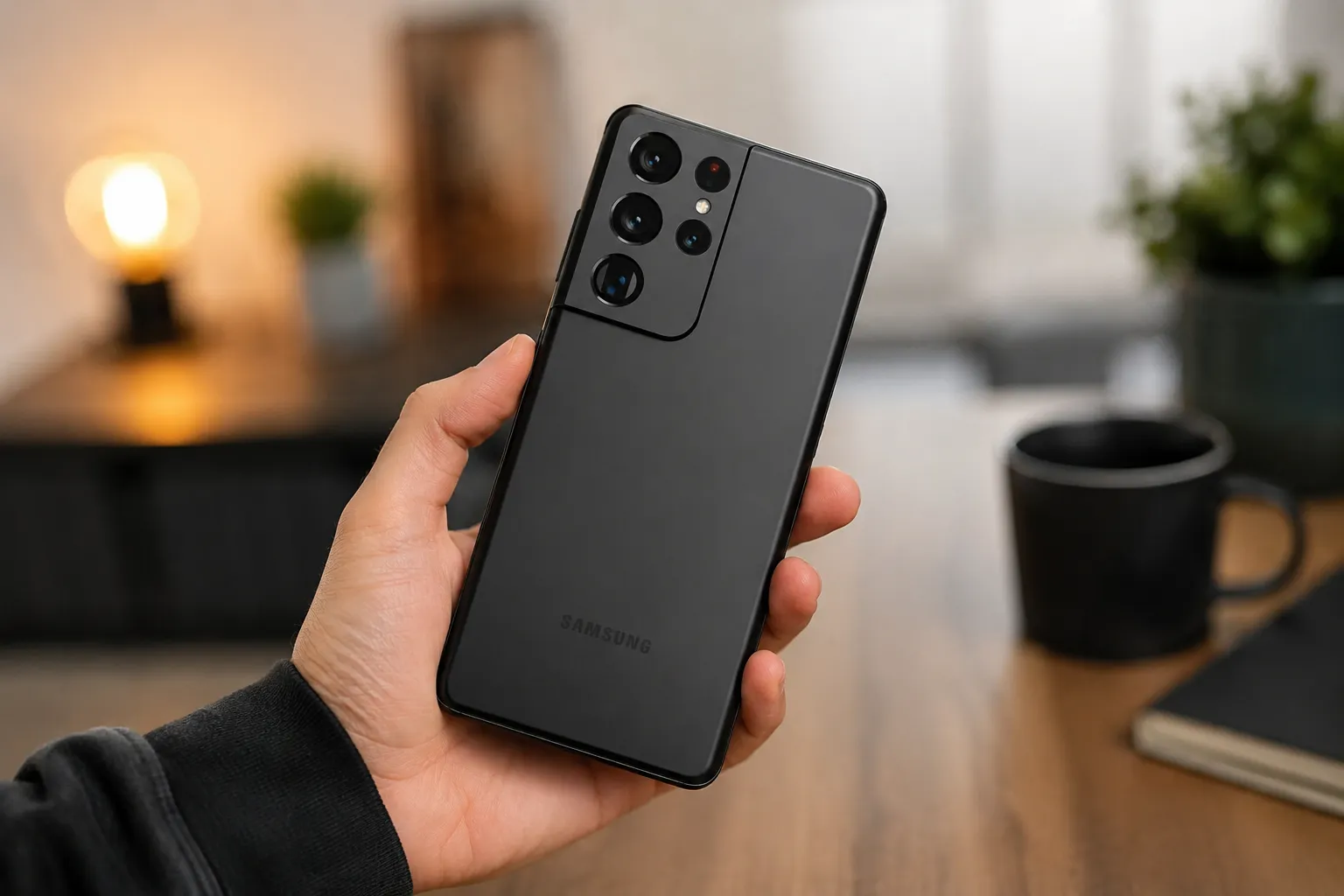
Samsung's One UI is famous for two things: it's loaded with features, and most of those features are buried so deep in the settings menu that almost nobody finds them. If you've owned a Galaxy phone for more than a year and never gone looking, there's a good chance you're sitting on a handful of tools that could genuinely improve how you use your device.
Below are 14 tested tips — a mix of long-standing One UI staples and a few additions that arrived with the One UI 8.5 update — organized so you can jump straight to what's useful for you.
1. Wake Your Phone Just by Picking It Up
Galaxy phones use their built-in motion sensors to detect when you've lifted the device, so you can skip the power-button press entirely. Turn it on under Settings > Advanced features > Motions and gestures > Lift to wake. It's a small change, but it removes one extra tap every single time you check your phone.
2. Turn the Power Key Into a Camera Shortcut
Missing a quick photo because your phone was locked is avoidable. Go to Settings > Advanced features > Side key, enable Double press, and set the action to Quick launch camera. Two presses of the power button and you're shooting, no unlock screen required.
3. Squeeze More Hours Out of a Low Battery
When your charge is running thin, head to Settings > Battery and device care > Battery > Power saving and enable the option to restrict the home screen and background apps. This switches your wallpaper to black, limits which apps can run, and disables extras like Edge Panels — a meaningful combination when you need your phone to last through the last stretch of a long day.
4. Keep Certain Photo Albums Out of Sight
The Samsung Gallery app lets you tuck away albums you don't want appearing in the main view. Open Gallery > Albums, tap the three-dot menu, choose Hide albums, and toggle on whichever folders you'd rather keep private. They won't show up unless you go looking for them specifically.
5. Answer Calls Without Touching Your Phone
If you're cooking, driving, or otherwise occupied, Samsung's accessibility tools let your phone pick up automatically when paired with Bluetooth. Enable it via Settings > Accessibility > Interaction and dexterity > Answering and ending calls > Answer automatically. Pair it with Read caller names aloud so you know who's calling before you say a word.
6. Skip the Lock Screen With an Always-On Fingerprint Sensor
Rather than waking the screen and then scanning your fingerprint, you can let the sensor stay active even while the display is off. Find this under Settings > Security and privacy > Biometrics > Fingerprints > Fingerprint always on. It shaves a step off every unlock.
7. Set Up Edge Panels — and Use the Tools Hiding Inside Them
Most people know Edge Panels as a shortcut shelf for favorite apps (Settings > Display > Edge panels), but the panel set also includes a working compass and a calibratable ruler that most Galaxy owners never open. If you need a quick measurement or a directional reading, it's already on your phone — no extra app required.
8. Move Sensitive Files Into a Genuinely Separate Profile
Secure Folder isn't just a hidden folder — it functions as an isolated, encrypted profile with its own apps, accounts, and files, separate from your main system. You'll find it at Settings > Security and privacy > Secure Folder. Recent One UI versions have rebuilt it on top of Android's Private Space framework, making it even more tightly sandboxed from the rest of your phone.
9. Auto-Delete Screenshots the Moment You Share Them
If your gallery fills up with screenshots you only ever needed to send once, go to Settings > Advanced features > Screenshots and screen recorder and enable Delete after sharing from toolbar. The catch: it only works if you share directly from the toolbar that pops up right after you capture the screenshot.
10. Build a Sound Profile Tuned to Your Own Hearing
Every set of ears processes sound a little differently, and Samsung's Adapt Sound tool accounts for that. Navigate to Settings > Sounds and vibration > Sound quality and effects > Adapt Sound, run the short hearing test, and save the resulting profile. It's a genuinely useful tweak if music or calls have ever sounded a little "off" through your earbuds.
11. Know Where the Hidden SOS Flashlight Lives
Samsung builds in an SOS flashlight pattern designed to draw attention if you're in trouble or need help being located. It's tucked away enough that most users never stumble onto it, so it's worth knowing it exists before you actually need it.
12. Automate Your Phone With Modes and Routines
Modes and Routines (the evolution of Bixby Routines) lets you trigger actions automatically based on location, time, connected devices, or battery level — silencing your phone at night, switching to Do Not Disturb when you arrive at the office, or launching your music app the moment you connect to your car's Bluetooth. Set it up from Settings > Modes and Routines. Newer versions also support chaining multiple conditions with AND/OR logic, so your automations can get considerably more specific.
13. Use Multi-Window Gestures Instead of Hunting Through Recents
You don't need to dig through the Recents menu to multitask. Search Multi window in Settings and turn on Swipe for split screen and Swipe for pop-up view. Swiping up from the bottom edge drops your current app into split-screen so you can choose a second app for the lower half, while swiping in from a top corner opens any app in a floating pop-up window. Turning on Full screen in split screen view also hides the status bar for a bit of extra screen space.
14. Send Files Instantly With the Upgraded Quick Share
Quick Share has been reworked over the last couple of One UI releases. It's now reachable directly from the Quick Settings panel instead of requiring you to share a file first, and recent updates have added NFC-based transfers alongside the existing Bluetooth and Wi-Fi Direct combo. To use it: swipe down for Quick Settings, tap Quick Share, and tap the name of any nearby device to send instantly. Several newer Galaxy and Pixel models have also gained cross-platform support, closing some of the gap with Apple's AirDrop.
Bonus: What Changed With One UI 8.5
If you've recently updated, a few things look and behave differently from what's described above:
- Bixby got a real upgrade. The assistant in One UI 8.5 is built to be more conversational and can handle device control directly — adjusting a setting or pulling up a search result from a spoken request instead of routing you through menus.
- Photo Assist now supports continuous editing. You can cycle through multiple AI-generated variations of an edited photo without saving each attempt individually.
- App folders got a visual refresh, with a stacked icon preview replacing the old three-dot overflow indicator, plus more control over folder background color and opacity.
None of these require any setup — they show up automatically once your device is running the latest software, which you can check under Settings > Software Update.
Quick Comparison: Which Tip Solves Which Problem
| Tip | Category | Effort to Set Up | Impact |
|---|---|---|---|
| Lift to wake | Convenience | Low | Small daily time saver |
| Camera shortcut | Convenience | Low | Faster photo capture |
| Power saving mode | Battery | Low | High when battery is low |
| Hidden albums | Privacy | Low | Keeps sensitive photos out of view |
| Hands-free call answering | Accessibility | Low | High for hands-busy situations |
| Always-on fingerprint | Security/Convenience | Low | Faster unlocking |
| Edge Panel tools | Productivity | Low | Adds compass/ruler at no extra cost |
| Secure Folder | Security | Medium | High — isolated, encrypted space |
| Auto-delete screenshots | Storage | Low | Keeps gallery clutter-free |
| Adapt Sound | Audio | Medium | Personalized listening quality |
| SOS flashlight | Safety | None (built-in) | Situational, high when needed |
| Modes and Routines | Automation | Medium | High — saves repeated manual steps |
| Multi-window gestures | Productivity | Low | Faster multitasking |
| Quick Share (updated) | File transfer | Low | High for frequent file sharing |
Frequently Asked Questions
Do these tips work on every Samsung Galaxy phone? Most are available across recent One UI versions, but exact menu names and availability can vary slightly by model and region. Foldables and the Ultra-tier devices sometimes get features first or have extra options layered on top.
Why can't I find some of these settings on my phone? Samsung occasionally renames or relocates settings between One UI versions. If a menu path doesn't match exactly, try using the search bar inside the Settings app — searching the feature name directly is usually faster than navigating manually.
Does enabling Power Saving Mode permanently slow down my phone? No. It only applies its restrictions while it's switched on, and reverts to normal performance and appearance as soon as you turn it off.
Is Secure Folder the same as just hiding an app? No. Secure Folder creates an actual separate, encrypted profile with its own apps and accounts, which is a meaningfully stronger form of separation than simply hiding an app icon.
Do I need to update to One UI 8.5 to use Quick Share's newer features? The NFC-based transfer and cross-platform sharing improvements are tied to recent One UI 8.5 updates and specific device support lists, so older software versions may only have access to the standard Bluetooth/Wi-Fi Direct version of Quick Share.
Will these settings drain my battery if left on? Most — like Lift to wake, always-on fingerprint, and hands-free call answering — have a negligible impact on battery life. Heavier automation through Modes and Routines or frequent Quick Share use will have more noticeable effects, though still far less than running power-intensive apps.
.



Comments