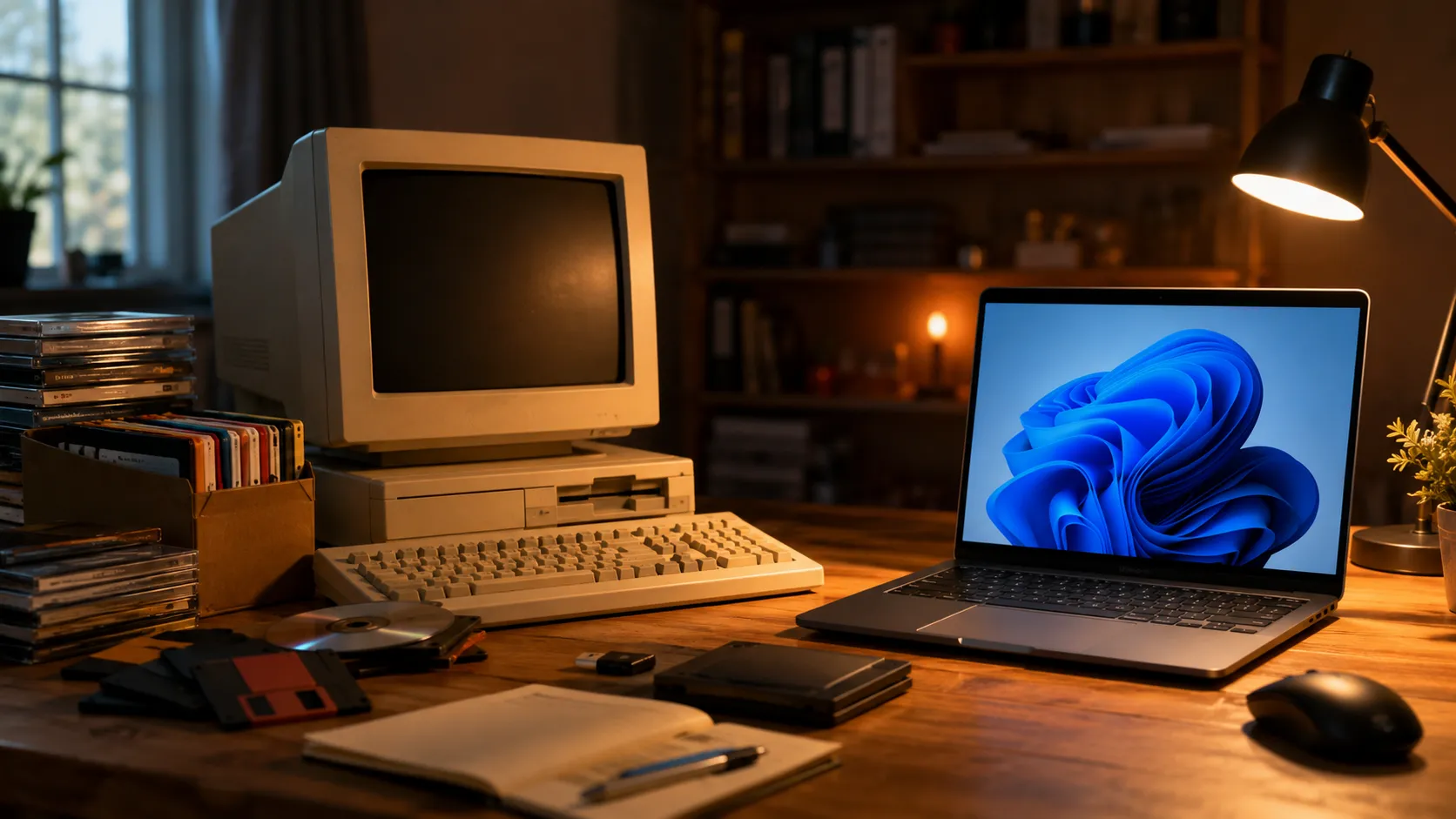
Let's be honest — some of the best software ever made is now considered "ancient." Whether it's a classic game from the late 90s, a legacy business application your company still secretly depends on, or cherished personal files locked inside an outdated format, the struggle to run old software on a modern PC is very real.
The good news? It's absolutely possible — and easier than most people think. This guide walks you through every method available in 2024, from quick compatibility tricks to full-blown emulation setups.
Why Old Software Stops Working on New Computers
Before we jump into solutions, it helps to understand why this problem exists in the first place.
Modern operating systems like Windows 11 or macOS Ventura have dropped support for a lot of legacy code. 32-bit applications, for example, can no longer run natively on newer versions of macOS (since Catalina in 2019). Similarly, Windows 11 has become stricter about what drivers and executables it will allow.
The core reasons old software breaks on modern hardware include:
- OS architecture changes (32-bit vs 64-bit)
- Deprecated APIs and system libraries that the software relied on
- Missing hardware drivers for peripheral-dependent programs
- Outdated installer formats that modern systems block or misread
- Removed subsystems, like the classic Windows XP-era UI components
Knowing this upfront helps you pick the right solution.
Step 1 — Rescue the Data First
If your old software lives on physical media, the very first thing you need to do is get it off that disk and onto your computer. Don't assume old media will last forever. Optical discs suffer from disc rot, and magnetic media like floppy disks degrades over time. Right now is the best moment to act before that data is gone for good.
For CDs and DVDs: A simple USB optical drive works fine. Your main task is creating a disk image (an ISO file) — an exact digital clone of the disc that you can mount and use without the physical media.
Creating an ISO on Windows: Download a free tool like BurnAware Free, select Disc Images > Copy to ISO, point it to your drive, name the file, and hit Copy. Windows 10 and 11 can natively mount ISO files — just double-click them.
On macOS: Open Disk Utility, select your disc, and use File > New Image to create a disk image. You may need to convert it from CDR to ISO format afterward for cross-platform compatibility.
On Linux: Unmount the disc first with sudo umount /dev/cdrom, then run the dd command to copy it to an ISO file. The terminal gives you precise control over the entire process.
For older media like floppy disks: You'll need the original drive hardware plus a USB adapter. These are still available on marketplaces like eBay. The older the format, the more effort it takes — but it's worth it.
Step 2 — Choose Your Method
Once your software is safely archived, there are four main ways to actually run it on a modern machine.
Method 1: Windows Compatibility Mode (Easiest, Windows Only)
If you're on Windows and the software is relatively recent (think Windows 95 through Windows 8-era apps), Compatibility Mode is your first stop. It's built right into Windows 10 and 11 and requires zero extra installs.
Here's how to use it:
- Find the
.exefile for the program - Right-click it and select Properties
- Go to the Compatibility tab
- Check "Run this program in compatibility mode for"
- Select an older Windows version from the dropdown
- Click OK and try running the program
If it doesn't work with one version, try another. Windows XP SP3 and Windows 7 tend to fix the most compatibility issues for software from the 2000s and early 2010s.
Pro tip: You can also run the Program Compatibility Troubleshooter by right-clicking the EXE and selecting Troubleshoot compatibility. Windows will detect and apply the right settings automatically.
Method 2: DOSBox for MS-DOS Era Programs and Games
For anything that predates Windows — or was designed for MS-DOS — DOSBox is the gold standard. It emulates a complete DOS environment right inside your modern OS, down to the CPU speed and sound card behavior.
DOSBox is free, open-source, and available for Windows, macOS, and Linux. It's especially well-loved in the retro gaming community, but it works equally well for old productivity software from the late 80s and early 90s.
Getting started is straightforward:
- Download and install DOSBox
- Mount a folder on your PC as a virtual C: drive using the
mountcommand - Copy your old program files into that folder
- Navigate to the folder and run the
.exeor.comfile as you would in real DOS
DOSBox even lets you tweak CPU cycles to match the original hardware speed — essential for games that run comically fast on modern processors.
Method 3: RetroArch and Other Emulators (Games and Classic Platforms)
If you're trying to run software from classic home computers — think Commodore 64, Amiga, Apple II, or early consoles — a dedicated emulator is the way to go.
RetroArch is the most comprehensive option available. It's a unified frontend that bundles dozens of individual emulators (called "cores") under one clean interface. You can run everything from early arcade games to PlayStation 1 titles, all in one app.
RetroArch runs on Windows, macOS, Linux, Android, and even devices like the Raspberry Pi. If you want one tool to rule them all for retro computing, this is it.
For a more focused experience, platform-specific emulators like VICE (Commodore 64), WinUAE (Amiga), or MAME (arcade hardware) often offer deeper accuracy and more configuration options.
Method 4: Virtual Machines (The Most Flexible Option)
A virtual machine (VM) is essentially a computer within your computer. Software like VirtualBox (free) or VMware creates a sandboxed environment where you can install an entirely different operating system — say, Windows XP or even Windows 98 — and run your old software inside it exactly as you would on the original hardware.
This method requires more setup than the others but offers the most flexibility:
- Install VirtualBox or VMware Workstation Player on your current machine
- Download a legal ISO of the OS you need (older Windows versions can be found through Microsoft's official archives or the Internet Archive)
- Create a new VM, allocate RAM and storage, and install the OS
- Copy your old software into the VM and run it as normal
Virtual machines are especially useful for legacy business software that requires specific OS environments, old hardware drivers, or 16-bit installers that modern Windows completely refuses to run.
Method 5: Wine, PlayOnLinux, and PlayOnMac (Linux and Mac Users)
If you're on Linux or macOS and want to run Windows software, Wine is a powerful compatibility layer that translates Windows API calls into ones your OS understands — no Windows license required.
PlayOnLinux and PlayOnMac are graphical frontends for Wine that make setup significantly easier, especially for software that needs specific Wine configurations to work properly.
The basic process on Linux:
- Install Wine and PlayOnLinux from your distro's software center
- Open PlayOnLinux, go to Configure > New, and create a new virtual drive
- Set the Windows version to match what your software was designed for
- Run the Windows executable from your mounted ISO
- Follow the installer, create a shortcut, and launch from the PlayOnLinux main window
Wine isn't perfect — compatibility varies by software — but for a huge range of Windows applications, it works remarkably well.
Bonus: Check the Web Before Going Down the Rabbit Hole
Before spending hours configuring a VM or emulator, it's worth checking whether someone has already done the legwork for you. Sites like GOG.com legally sell classic games pre-configured to run on modern PCs. The Internet Archive's Software Library hosts thousands of vintage programs you can run directly in your browser. And many classic productivity apps have open-source successors that read old file formats natively.
Quick Comparison: Which Method Should You Use?
| Software Type | Best Method |
|---|---|
| Windows 95–XP era apps | Compatibility Mode |
| MS-DOS games and programs | DOSBox |
| Classic consoles and home computers | RetroArch / emulators |
| Software needing a full OS environment | Virtual Machine (VirtualBox) |
| Windows software on Linux/Mac | Wine / PlayOnLinux |
Final Thoughts
Running old software on a modern PC isn't always plug-and-play, but the tools available today make it more accessible than ever. Whether you're trying to recover years of data from an old program, relive a childhood game, or keep a legacy business tool alive a little longer, there's a solution that fits your situation.The key is acting sooner rather than later — old media doesn't last forever, and the longer you wait, the higher the risk of permanent data loss.
FAQ
Can I run 16-bit programs on Windows 11? No, Windows 11 (64-bit) doesn't natively support 16-bit applications. Your best option is a virtual machine running an older Windows version like XP or 7.
Is DOSBox free to use? Yes, DOSBox is completely free and open-source. It's available on Windows, macOS, and Linux.
Do I need a Windows license to use a virtual machine? Yes, if you're installing Windows inside a VM, you need a valid license. However, Microsoft does offer free evaluation versions of some older Windows releases for testing purposes.
Is Wine legal to use? Absolutely. Wine is an open-source project that doesn't contain any Microsoft code — it independently reimplements the Windows API.
What's the best free virtual machine software? VirtualBox by Oracle is the most popular free option and works on Windows, macOS, and Linux.

Comments