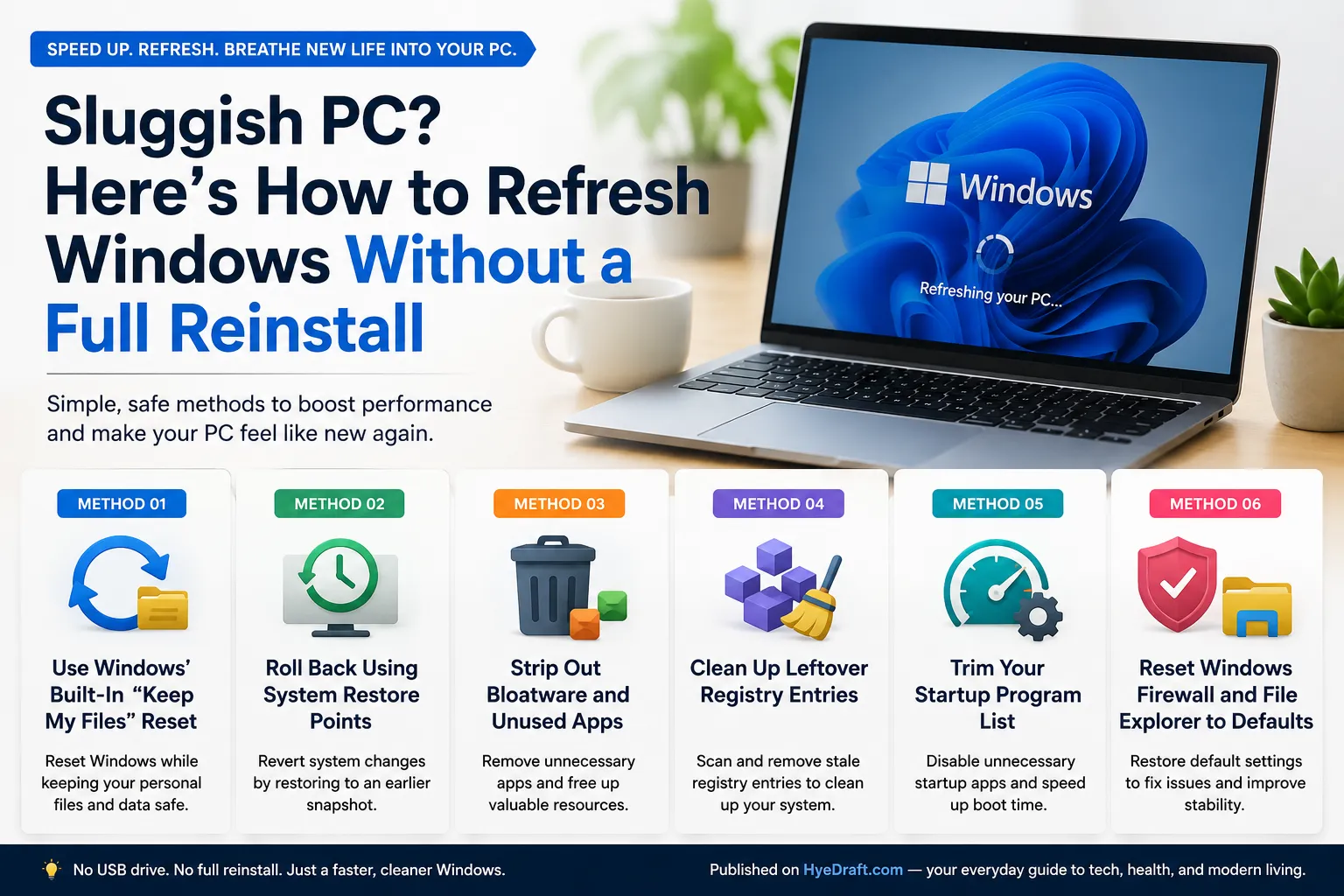
A slow, bloated computer doesn't always need a fresh Windows installation to feel new again. These practical methods can restore your PC's performance — no USB drive required.
Method 01
Use Windows' Built-In "Keep My Files" Reset
Windows 10 and 11 offer a reset option that essentially gives the operating system a fresh start while leaving your personal documents, photos, and data untouched. Think of it as a surgical refresh — it replaces all the system components but ignores your personal folder entirely. It's the single fastest way to feel like you're on a brand-new machine without manually reinstalling everything from scratch.
Method 02
Roll Back Using System Restore Points
If your PC started acting up after a specific change — a new app, driver update, or system tweak — System Restore is your best friend. Windows silently creates restore points at key moments (major updates, software installs), and some manufacturers even bake in a factory restore point right out of the box. Rolling back to one of these snapshots reverses system-level changes while keeping your files safe. The catch: this only works if restore points were created before things went sideways.
Method 03
Strip Out Bloatware and Unused Apps
New laptops often ship loaded with software nobody asked for — trial antivirus suites, third-party toolbars, brand utilities that run quietly in the background. Over time, even self-installed programs accumulate. A good spring-clean of your app list can noticeably speed things up. Head to Apps → Installed apps in Settings and sort by size or install date to quickly spot the culprits. For anything that refuses to uninstall cleanly, a tool like Revo Uninstaller hunts down leftover files and registry entries the standard uninstaller misses.
Method 04
Clean Up Leftover Registry Entries
The Windows Registry is a behind-the-scenes database that tracks installed software, hardware settings, and system preferences. When programs are uninstalled, they often leave orphaned entries behind — digital cobwebs that can pile up over years of use. A reputable registry cleaner (CCleaner, Wise Registry Cleaner) can scan for and safely remove stale entries. That said, always back up your registry before running any cleaner, since even well-designed tools can occasionally flag something it shouldn't.
Method 05
Trim Your Startup Program List
Every app you install tends to nominate itself to launch at boot — whether you want it to or not. The more programs fighting for resources at startup, the longer your PC takes to become usable. Open Task Manager with Ctrl + Shift + Esc, switch to the Startup apps tab, and check the "Startup impact" column. Anything marked High that you don't need immediately at boot is a candidate for disabling. You're not uninstalling anything — just telling Windows to load it on demand instead.
Method 06
Reset Windows Firewall and File Explorer to Defaults
Years of tweaking system settings can leave Windows behaving inconsistently. Two areas worth resetting: the Windows Firewall (search for Firewall & network protection and click "Restore firewalls to default") and File Explorer options (search File Explorer Options and hit "Restore Defaults" on the General tab). These small resets can fix odd network behaviour and file browsing quirks without touching anything else on your system.
None of these steps require you to wipe your drive or start over from scratch. Work through them in order — most people find that methods 3 and 5 alone make a noticeable difference. If you try everything and the machine still feels sluggish, that's when the more nuclear options (a clean Windows install or a hardware upgrade) are worth considering.
Published on HyeDraft.com — your everyday guide to tech, health, and modern living.





Comments