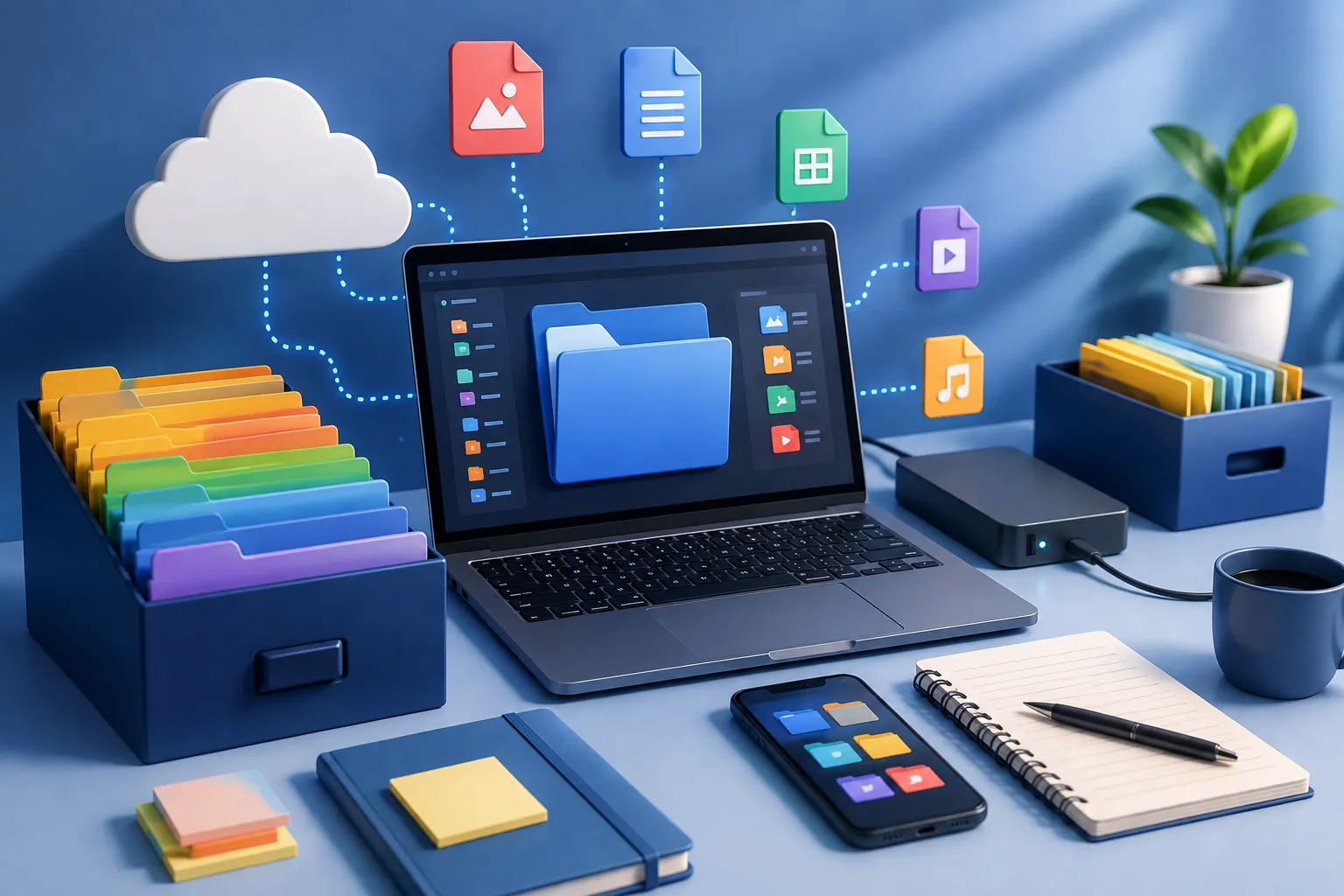
The average computer user creates hundreds of new files a month — screenshots, downloads, drafts, invoices, exports. Left unmanaged, that pile turns into a search bar you're constantly typing into just to find something you saved last week. Good digital file management isn't about perfect folders; it's about a system you'll actually keep using.
Here are 9 practical tips, plus the tools that make each one easier.
1. Start With a Simple, Consistent Folder Structure
Before reaching for any app, fix the foundation: your folder hierarchy. The goal isn't complexity — it's consistency. A structure like Category > Project > Year works for almost anyone, whether it's personal files or work documents.
Keep top-level folders broad (Finance, Work, Personal, Media) and let subfolders get specific only where you actually need to search. Folder trees deeper than 3–4 levels tend to get abandoned because they're too slow to navigate.
2. Adopt a File Naming Convention
Vague file names like Untitled_final_v2.docx are the single biggest cause of "I know I saved this somewhere." A simple naming convention — YYYY-MM-DD_ProjectName_Description — makes files sortable by date and searchable by keyword without opening a single folder.
Pick one convention, write it down somewhere you'll actually see it, and apply it retroactively to your most-used folders first, not your entire drive at once.
3. Use Cloud Storage as Your Single Source of Truth
Splitting files across a laptop, an external drive, and three cloud accounts guarantees you'll eventually lose track of the "real" version. Pick one primary cloud platform and treat everything else as backup or overflow.
<cite index="9-1">Google Drive is consistently ranked as a top overall pick for file organization, largely because it pairs cloud storage with tight integration into a broader productivity suite.</cite> If your household or team already lives in Microsoft or Apple's ecosystem, OneDrive or iCloud Drive serve the same "single source of truth" role just as well — the platform matters less than actually committing to one.
4. Automate Sorting With Rule-Based Tools
Manually dragging files into folders doesn't scale. Automation tools watch a folder (like Downloads) and move, rename, or tag files based on rules you set once.
<cite index="12-1">Hazel, for example, is a Mac automation tool that organizes files into folders based on customizable rules tied to file type, date, or content.</cite> Windows users get similar functionality from tools like File Juggler. Setting up even 3–4 basic rules — "move PDFs from Downloads to Documents/Receipts," for instance — eliminates a huge share of daily manual tidying.
5. Tag Files Instead of Relying on Folders Alone
Folders force a file into exactly one location, but most files logically belong in more than one category. Tags solve this by letting a single file surface under multiple searches without duplicating it.
Tools like TagSpaces add a flexible, cross-platform tagging layer on top of your existing folder structure, so you don't have to abandon folders — you just stop depending on them as the only way to find things.
6. Use AI-Powered Search and Auto-Tagging for Visual Files
Design files, screenshots, and photos don't organize well with plain-text file names. <cite index="12-1">Visual organizers such as Eagle use AI-driven auto-tagging and search to identify content, colors, and similarities across large file libraries instantly.</cite> For photo libraries specifically, tools with built-in AI indexing can find an image by describing what's in it, rather than requiring you to remember the file name.
7. Set a Recurring Digital Declutter Schedule
Organization decays without maintenance. Block 15–20 minutes every week (or month, for lighter use) to:
- Empty Downloads and Desktop folders
- Delete duplicate files and old drafts
- Archive completed projects out of active folders
- Empty cloud storage trash to free up quota
This is far less overwhelming than the once-a-year "clean everything" project, and it keeps your system from silently drifting back into chaos.
8. Centralize Notes and References Separately From Files
Not everything belongs in a folder — quick notes, clippings, and reference material often get lost inside file systems built for documents. A dedicated notes or knowledge-base tool (Notion, Evernote, or similar) keeps that content searchable and separate from your actual file storage, so your Drive or Documents folder doesn't become a dumping ground for half-formed notes.
9. Back Up Everything in at Least Two Places
Organization means nothing if a drive failure wipes it out. Follow the basic 3-2-1 rule: at least 3 copies of important files, on 2 different types of storage, with 1 copy off-site (typically cloud). Most cloud storage platforms handle the off-site copy automatically — pair that with an occasional local backup for anything mission-critical.
Comparison: Popular File Organization Tools
| Tool | Best For | Platform | Pricing Model |
|---|---|---|---|
| Google Drive | All-around cloud storage + collaboration | Web, Windows, macOS, mobile | Free tier + paid storage tiers |
| Hazel | Rule-based automatic sorting | macOS | One-time purchase |
| Eagle | Visual assets, design files, screenshots | Windows, macOS | One-time purchase |
| TagSpaces | Cross-platform tagging without cloud lock-in | Windows, macOS, Linux | Free (open-source) + paid Pro |
| Notion | Notes and reference material, not raw files | Web, Windows, macOS, mobile | Free tier + paid plans |
| Nextcloud | Self-hosted cloud storage and sync | Self-hosted, all platforms | Free (self-hosted) |
Frequently Asked Questions
What's the best way to organize files if I'm starting from scratch? Start with a shallow, consistent folder structure (2–3 levels deep) and a simple naming convention before adding any tools. Automation and tagging tools work best on top of a clean foundation, not as a replacement for one.
Do I need paid software to stay organized? No. A consistent folder structure, naming convention, and a regular declutter habit get most people 80% of the way there for free. Paid tools like Hazel or Eagle mainly save time once your file volume is large enough that manual sorting becomes a burden.
How often should I clean up my digital files? A short weekly pass (15–20 minutes) for Downloads and Desktop clutter, plus a monthly review of active project folders, is enough to prevent buildup for most users.
Should I use tags or folders? Use both. Folders are best for a file's "home" location; tags are best for cross-cutting categories a single file belongs to. They aren't competing systems — tags work on top of your existing folders.
What's the safest way to back up organized files? Follow the 3-2-1 rule: three copies total, on two different storage types, with at least one copy stored off-site — typically satisfied automatically by syncing your primary folders to cloud storage.






Comments