
Gmail doesn't offer a simple, one-click way to sort your inbox the way a traditional desktop email client does. There's no button that instantly arranges messages by sender or subject. That said, Gmail's search tools and labeling system give you several effective workarounds that let you take control of a cluttered inbox once you know where to look.
Finding All Emails From One Sender
If you've recently received a message from someone and want to see everything they've ever sent you, there's a quick shortcut. Open your inbox, find any email from that person without clicking to open it, and right-click on it. From the menu that appears, choose Find emails from.
Gmail will immediately pull up every message that sender has ever sent you, including older ones you may have archived long ago. You'll also see their full contact details right there, making it simple to reply or start a call.
If the sender isn't visible in your current inbox view, type their name or email address into the search bar first. Once their messages appear, right-click on any of them and select Find emails from as before.
Searching by Sender Without Knowing Their Name
You can also filter your inbox by sender using Gmail's advanced search options, even without an exact name in mind. Click the filter icon on the right side of the search bar to open the Show search options panel.
This panel lets you search using several parameters: you can look for emails containing (or excluding) specific words anywhere in the message body, not just the subject line, which is handy when you only remember the general topic of a conversation. You can also narrow results to messages that include attachments, or use the Date within field to restrict your search to a particular time period.
Once you've located the sender you want, apply the Find emails from trick described above to pull up their full message history.
Using Search Operators Instead
If you'd rather skip the search options panel, Gmail also supports search operators similar to Google's. Typing to:bob directly into the search bar, for instance, will return every email you've sent to someone named Bob.
Sorting Your Inbox by Subject
Sometimes what you need isn't a sender but a topic — for example, tracking down every message related to a family reunion you're planning. Open the search options panel again; one of the fields lets you search specifically by subject line. You can also use the Includes the words field to enter several related terms separated by commas, such as "get-together, gathering, event."
At the bottom of the search options box, you'll find a setting that controls where Gmail looks. By default it searches your entire mailbox, but you can restrict it to a specific label or folder if the results are too broad — or even search Spam and Trash if someone claims to have sent a message you can't find. Just keep in mind that Gmail permanently deletes anything sitting in Trash after 30 days.
Using Labels to Organize Your Inbox
Labels function like virtual folders in Gmail, but with one key advantage: a single email can carry multiple labels at once, unlike a traditional folder system where a message can only live in one place.
Applying Labels to Messages
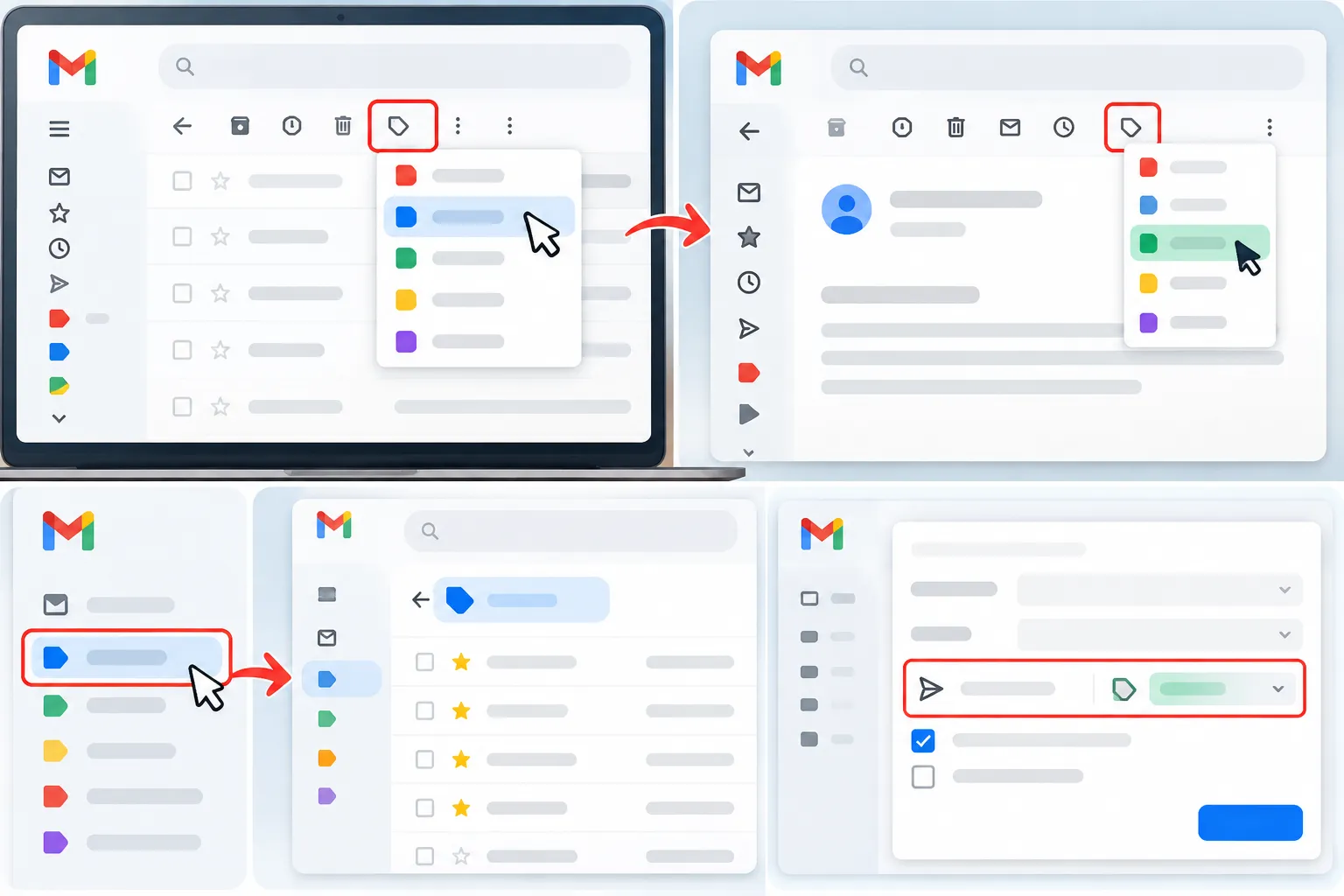
Open any email, then click the tag-shaped icon in the toolbar above it — this is the Labels button. From the dropdown, choose an existing label or select Create new to make one. You can also label multiple messages at once by checking the boxes next to them in your inbox and then clicking the label icon, which is especially useful when managing or deleting several emails together.
Viewing Messages by Label
To see every message assigned to a particular label, simply click that label's name in the sidebar of your inbox. Gmail will instantly display the full list of matching emails.
Automating Labels for Incoming Mail
Manually labeling every message takes extra effort, especially if you're managing a busy inbox. Gmail lets you set up filters that automatically apply labels to incoming emails based on rules you define, removing the need to do it by hand.
For teams that need more advanced organization, a third-party tool called Gmelius can extend this further, allowing colleagues to share labels across a team. Gmelius also includes features unrelated to sorting, such as message tracking, shared inboxes, and email templates. It's available as a free trial, with paid plans starting at $15 per month, on Chrome, Android, and iOS.
Final Thoughts
Gmail's built-in automated sorting isn't always enough if you prefer a more hands-on approach to managing your inbox. Fortunately, between advanced search options, search operators, and a flexible labeling system, it's entirely possible to organize your messages by sender, subject, or label — keeping your inbox cleaner and easier to navigate.







Comments