How to Record Phone Calls on iPhone in 2026: 4 Methods That Work
Reyan khuller
For years, recording a call on an iPhone meant jumping through hoops — merging in a third-party line, propping a second phone against your ear, or paying a subscription for something Android users got free. Apple finally fixed that in late 2024, and iOS 26 has since turned it into a genuinely capable tool with transcripts, summaries, and live translation built in.
The catch is that the feature is geo-locked, and the list of countries where it doesn't work is longer than most people expect. So this guide covers the built-in method first, then three fallbacks for anyone who opens the Phone app and finds no recording button at all.
First: The Legal Part (Don't Skip This)
Recording someone without telling them can range from "mildly rude" to "a criminal offence," depending entirely on where you and the other person are.
Broadly, jurisdictions fall into two camps. One-party consent places only require that one person on the call — you — knows it's being recorded. Most of the United States, India, and the UK fall here for personal use. Two-party or all-party consent places require everyone on the line to agree. Several US states, including California and Florida, work this way, as do a number of European countries.
Two practical complications:
- If you're calling across borders, the stricter rule generally wins. A call from a one-party state to a two-party state is not a safe assumption.
- Personal use and business use are treated differently in many places. India permits recording your own conversations, but using those recordings commercially or publishing them brings separate rules into play.
Apple sidesteps most of this with a design decision: the built-in recorder plays an audible announcement to both parties, and you cannot turn it off. That's not a bug. It's the feature that keeps the whole thing legal in the regions where it ships.
The honest advice, regardless of local law: say out loud that you're recording and wait for a yes. It costs three seconds and removes the entire problem. This article isn't legal advice — if a recording might end up in a dispute or a court, talk to a lawyer.
Method 1: The Built-In iOS Call Recorder (Best Option)
This is the method to use if it's available to you. It's free, it's high quality, and it doesn't route your conversation through a third party's servers.
Check whether your region supports it
Apple maintains a public feature availability page, and call recording is currently not offered in the European Union, Azerbaijan, Bahrain, Egypt, Iran, Iraq, Jordan, Kuwait, Morocco, Nigeria, Oman, Pakistan, Qatar, Russia, Saudi Arabia, South Africa, Turkey, the UAE, and Yemen.
If you're in India, the US, Canada, the UK, Australia, or New Zealand, you're covered. If you're in the EU, you're not — no amount of restarting will help, and the toggle simply won't appear in Settings.
You also need iOS 18.1 or newer. Every iPhone that received that update supports the feature, going back to the iPhone XS.
Turn it on
Open Settings → Apps → Phone → Call Recording and switch it on. This is a one-time setup.
Record a call
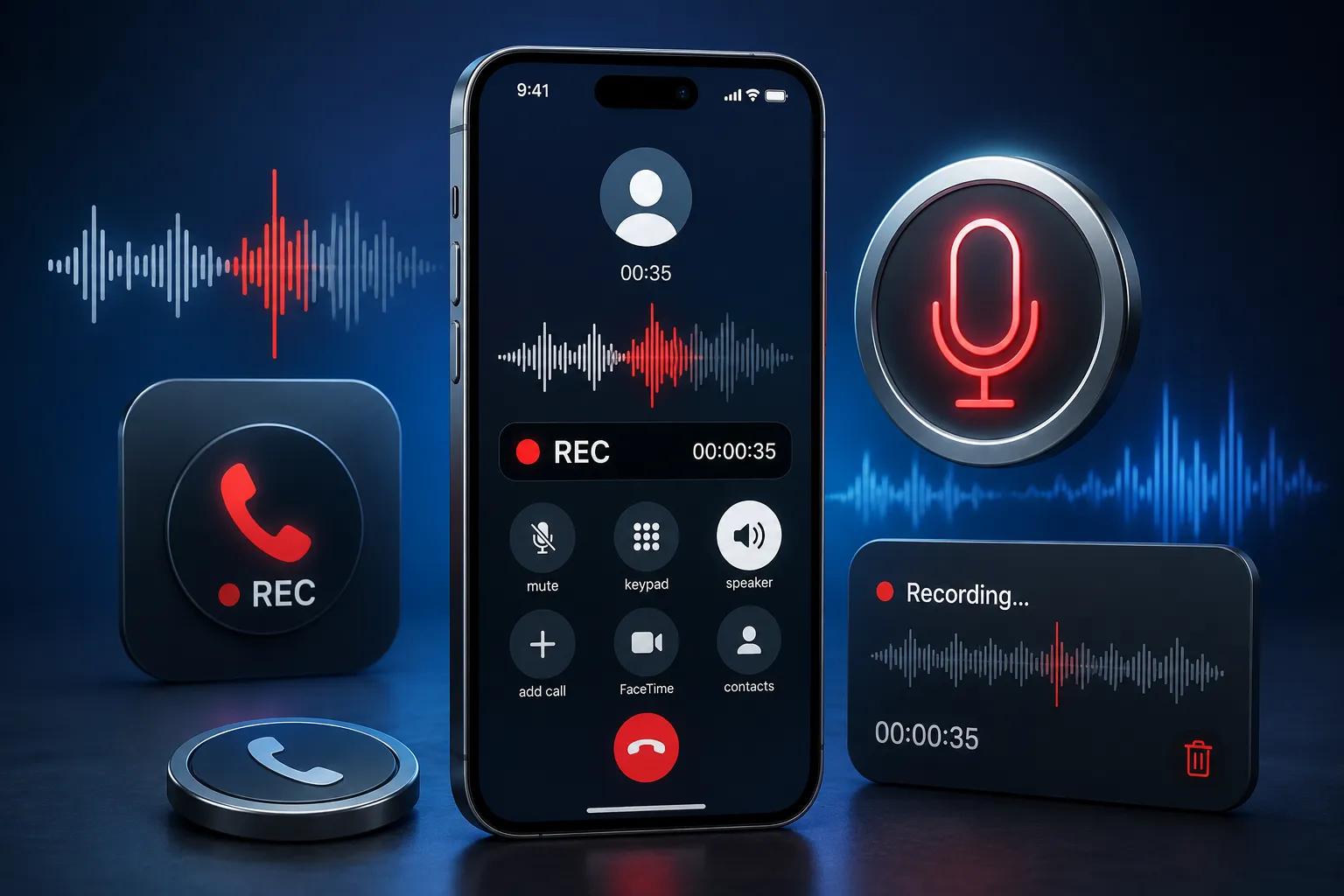
Here's where most older guides will steer you wrong. In iOS 18, the recording control sat as a waveform icon in the top-left corner of the call screen. iOS 26 moved it into the More menu. If you're on the current version and hunting the top-left corner, you'll conclude the feature has vanished.
- Start or answer a call in the Phone app.
- Tap More (the additional-options button).
- Select Call Recording.
- A three-second countdown runs, then an automated voice tells both parties the call is being recorded.
- Tap Stop when you're done, or just hang up — the recording saves either way.
Note the limitation: this works for one-to-one calls. Conference calls aren't supported.
Find and use your recordings
Recordings land automatically in the Notes app, in a folder called Call Recordings. Open a note and tap play to listen back.
The transcript is where iOS 26 gets genuinely useful. On supported devices and languages, the call is transcribed with each speaker identified, and you can tap any line of text to jump to that moment in the audio. From the More menu inside a recording you can search the transcript, copy it into a note, export the audio file elsewhere, share it, or delete it.
Apple also added AI summaries and live translation to the flow in iOS 26 — helpful for interviews and long meetings, though you should always spot-check a transcript before relying on it for anything that matters. Automatic transcription is good, not infallible.
Method 2: An External Recorder (The Universal Fallback)
This one works everywhere, on every iPhone, with no software and no regional lock. It's crude, and that's exactly why it's reliable.
Put your call on speakerphone and record the room with a separate device — a second phone running Voice Memos, a dedicated digital recorder, or a decent USB microphone plugged into a laptop running Audacity.
To get usable audio:
- Find a quiet room. Speakerphone plus ambient noise plus a second microphone is a bad combination.
- Position the recording device close to your iPhone's speaker, and sit close enough that your own voice is captured clearly too.
- Do a ten-second test before the real call. Levels that seem fine live are often unusable on playback.
- Tell the other person first — you have no automated announcement doing that job for you here.
Quality won't match a native recording, but for an interview or a call you just need a record of, it's perfectly adequate.
Method 3: Third-Party Apps Like TapeACall
Worth understanding why these apps work the way they do. iOS blocks apps from accessing the phone call audio stream directly — a deliberate security boundary. So every call recorder on the App Store uses the same workaround: the app dials its own recording server, you merge that server into your existing call as a three-way conference, and the server captures audio from its end.
It's legitimate and carrier-supported, not a hack. But it has consequences:
- Your conversation passes through a company's servers, not just your phone.
- You add a merge step to every single call.
- Audio quality depends on your signal strength at both ends.
- Your carrier plan must support three-way calling. Many prepaid plans in India don't.
TapeACall is the best-known option, records both incoming and outgoing calls, exports as MP3, and syncs to Dropbox or Google Drive. It's subscription-based with a one-week trial — set a calendar reminder to cancel if you're only testing it.
Honestly, I'd reach for Method 2 before paying for this. An external recorder costs nothing recurring and keeps your conversations off someone else's infrastructure.
Method 4: The Voicemail Merge Trick (Last Resort)
This is a carrier-dependent hack that works on some networks and fails silently on others. Try it only if the first three options are closed to you.
The idea is to merge your own voicemail inbox into a call so that it records the conversation as a message.
- Call your contact and get their consent. Ask them to hold.
- Tap Add Call and dial your own number.
- Wait for your voicemail greeting to finish.
- Tap Merge Calls.
- Hang up when finished. The conversation should appear as a voicemail message.
- Open the Voicemail tab, select the message, tap Share, and choose Save to Files.
Two things determine whether this works at all. First, your carrier must support visual voicemail with downloadable messages — if the Voicemail tab shows only a "Call Voicemail" button rather than a list, you can't export anything. Second, many carriers cap voicemail length at two or three minutes, which makes this useless for anything but short calls.
Which Method Should You Use?
| Method | Cost | Audio quality | Works everywhere | Effort |
|---|---|---|---|---|
| Built-in iOS recorder | Free | Excellent | No — region locked | Minimal |
| External recorder | Hardware only | Fair to good | Yes | Moderate |
| Third-party app | Subscription | Variable | Mostly | Moderate |
| Voicemail merge | Free | Poor | Rarely | High |
Use the native feature if you can. Fall back to an external recorder if you can't. The other two are situational.
Troubleshooting: Call Recording Missing on iPhone
If you've enabled the setting and still see nothing during calls, work through this list:
- You're looking in the old place. On iOS 26 the button lives under More, not the top-left corner. This is the single most common cause.
- Your region isn't supported. Check the blocked list above. If you're in it, the toggle won't even appear in Settings.
- You're below iOS 18.1. Go to Settings → General → Software Update.
- Storage is full. Recordings save locally before syncing. Free up space in Settings → General → iPhone Storage.
- It's a conference call. Recording only works one-to-one.
- Restart the phone. Genuinely fixes a surprising number of these.
Frequently Asked Questions
Is it legal to record calls on an iPhone in India? Recording a conversation you're a participant in is generally permitted in India, and Apple ships the feature there. Best practice is still to inform the other person — and note that publishing or commercially using a recording falls under different rules.
Can I record a call on iPhone without the other person knowing? Not with Apple's built-in recorder. It plays a mandatory announcement to both parties and there's no way to disable it. That's intentional, and in most places, recording covertly is legally risky anyway.
Does iPhone call recording work on WhatsApp calls? No. The native feature only covers calls placed through the Phone app. WhatsApp, FaceTime, and other VoIP calls aren't included.
Where do iPhone call recordings get saved? In the Notes app, inside a folder named Call Recordings — not in Voice Memos or Files, which trips people up. You can export the audio elsewhere from the More menu.
Which iPhones support call recording? Any iPhone that runs iOS 18.1 or later, including the iPhone XS and every model since. Transcription has stricter requirements and depends on your device and language.
Can I record a conference call? No. Apple's implementation is limited to one-to-one calls. For a group call, you'll need an external recorder.
The Bottom Line
Apple's built-in recorder is the right answer for most people — free, clean audio, searchable transcripts, and no third party sitting in the middle of your conversation. If it's greyed out or missing, check the More menu before assuming your region is blocked, since that one UI change in iOS 26 accounts for most of the confusion online.
If you're genuinely outside the supported regions, skip the paid apps and buy a cheap digital recorder instead. It works on every call, in every country, forever, with no subscription attached.
And whichever route you take: ask first. It's the one step that turns a legal grey area into a non-issue.