
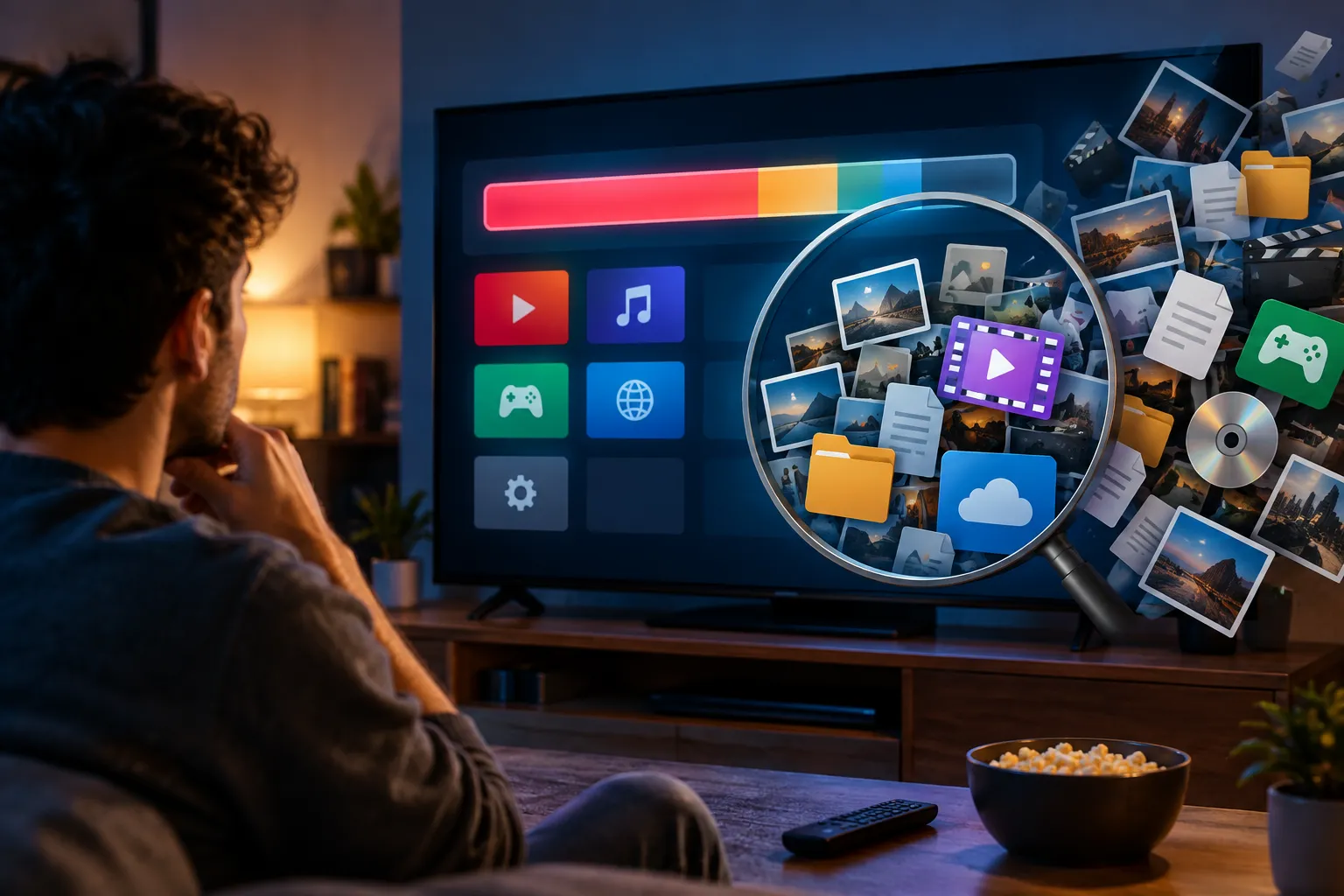
When a television starts stuttering — menus that lag half a second behind the remote, apps that hang on a splash screen — the advice you will hear first is to delete the preinstalled apps you never open. That rarely fixes it, because unused apps are the smallest thing occupying smart TV storage. The space is mostly going to caches, locally stored artwork, recommendation media and the odd game you installed and forgot. Here is what each of those costs, and the order to clear them in.
Key takeaways
- An app you never launch costs a few megabytes; the cache belonging to an app you use daily can grow to several times its install size.
- Art-mode and ambient-screen collections are full-resolution image files kept on the set, and they add up faster than anything else.
- Home-screen recommendation tiles and viewing history are cached locally and never appear in the app list.
- Games on Android-based platforms outweigh every streaming app combined.
- Samsung Tizen and Roku sets give you far less to manage — which also means far less visibility into what is full.
Why smart TV storage runs out so fast
Televisions ship with very little room to begin with. A mid-range set might have 8GB of flash memory, and a meaningful slice of that is taken by the operating system before you unbox it. Unlike a phone, there is no card slot and no cheap upgrade path. So the margin between "fine" and "sluggish" is thin, and the platform does not warn you as you cross it — the symptoms just show up as slowness.
Low free space hurts performance on these devices for the same reason it does on a laptop: the system needs scratch room to unpack updates, write caches and swap data. Once that room is gone, everything waits.
What is actually taking the space
1. Application caches, not the apps
Streaming services store thumbnails, trailer clips and metadata locally so browsing feels instant. Every time you scroll a row, a few more images land on the drive. On Google TV, open Settings > System > Storage and you will see each app listed with its cached data beside it — the ones you use most are usually the ones that have ballooned. Clearing it takes seconds and costs nothing permanent: go to Settings > Apps > See all apps, pick the app and choose Clear cache. Avoid Clear data unless you want to sign in again.
2. Art mode and ambient galleries
This is the one people never suspect. Sets built to display artwork or photographs while idle keep each piece on local storage, because streaming a fresh 4K image every few minutes would be wasteful and slow. Individually these files are a few megabytes. A curated rotation of dozens of paintings plus your own holiday photos is a different matter, and trimming it back to the images you genuinely cycle through frees more room than uninstalling every dead app on the set.
3. Recommendation media and viewing history
Those rows of suggestions on the home screen are images, often with a short auto-playing preview attached, and they are cached so the interface stays responsive. The longer you own the set, the more of that media accumulates. Beneath it sits a local record of what you have watched, which feeds the suggestions. None of it is listed as an app, so it is invisible unless you go looking. You cannot delete it outright, but signing out of the profile and back in, resetting the advertising ID and pausing watch history all slow the accumulation. On Google TV those controls are grouped under privacy settings, documented in Google TV's support pages.
4. Games and sideloaded apps
Android-based platforms let you install games, and a casual title can outweigh every streaming app on the television. If you installed one to try it out, it is probably still there. The same goes for anything you sideloaded to fill a gap in the official store. Both are easy wins because uninstalling them is genuinely permanent — nothing rebuilds itself.
5. System update leftovers
Downloaded firmware packages sometimes stay on the device after installation. There is usually no user-facing control for this, but a full power cycle — unplug the set for a minute rather than using standby — prompts many platforms to tidy up on the next boot.
Where to find the storage menu on each platform
| Platform | Path | What you can control |
|---|---|---|
| Google TV / Android TV | Settings > System > Storage | Per-app size and cache, clear cache, uninstall |
| Samsung Tizen | Settings > Support > Device Care | Uninstall apps, basic memory cleanup |
| LG webOS | Settings > General > devices, plus the app row edit mode | Uninstall apps |
| Roku TV | Settings > System > About (storage is largely hidden) | Remove channels only |
| Fire TV | Settings > My Fire TV > About > Storage | Per-app size, clear cache, uninstall |
The pattern is worth noticing: the platforms that give you the most to manage also give you the most control. Tizen and Roku keep the drive tidier by design, but when one of those sets slows down, uninstalling apps is close to the only lever available. Samsung's and Roku's own troubleshooting steps are on the Samsung support site and at Roku support.
A ten-minute cleanup, in order
- Open the storage menu and note the total free space, so you can tell what worked.
- Uninstall games and sideloaded apps first — the largest single items, and permanently gone.
- Clear the cache on your four or five most-used streaming apps.
- Trim the art or ambient gallery to what you actually want on screen.
- Reset the advertising ID and pause watch history to slow the recommendation build-up.
- Remove apps you have not opened in a year — a small gain, but it is free.
- Unplug the television for sixty seconds, then check the free space again.
Who should stop bothering and buy a streaming stick
If you repeat this cleanup every couple of months, the television is telling you something. A dedicated streaming box moves the apps, the caches and the recommendation churn onto hardware designed for the job, with more memory and a faster processor than any panel maker puts behind a screen. It also keeps getting software updates after the television stops receiving them, which on a set you expect to own for a decade matters more than the cleanup does.
The panel then does the single thing it is genuinely good at: displaying a picture. If you are weighing that up, our gadgets coverage and step-by-step guides go further into choosing one.
Frequently Asked Questions
Does clearing the cache delete my logins or watchlists?
No. Clear cache removes temporary files only, and the app rebuilds them as you browse. Clear data is the destructive option — that one resets the app and signs you out.
Can I add an SD card or USB drive to expand smart TV storage?
Some Android TV and Fire TV devices let you format external media as extra app storage; most televisions do not, and will only read a USB drive for media playback. Check your model's manual before buying anything.
How much free space should a smart TV have?
Aim to keep at least 1GB free, and more if the set has a small drive to begin with. Below that, updates start failing and the interface slows noticeably.
Will a factory reset fix a slow television?
It will, temporarily, because it clears everything described above at once. It also removes every app and sign-in, so treat it as a last resort after targeted cleanup has failed.
Is a slow smart TV a sign the panel is failing?
Almost never. Display hardware outlasts the software running on it by years. Sluggishness is a storage and memory problem, not a picture problem.
Final thoughts
Unused apps are the easiest thing to blame for full smart TV storage and the least important. Spend your ten minutes on the caches, the artwork library and the games you forgot about instead, and most sets pick up noticeably. If the slowdown keeps coming back, stop asking the television to run software at all and let a streaming box take over.




Comments