
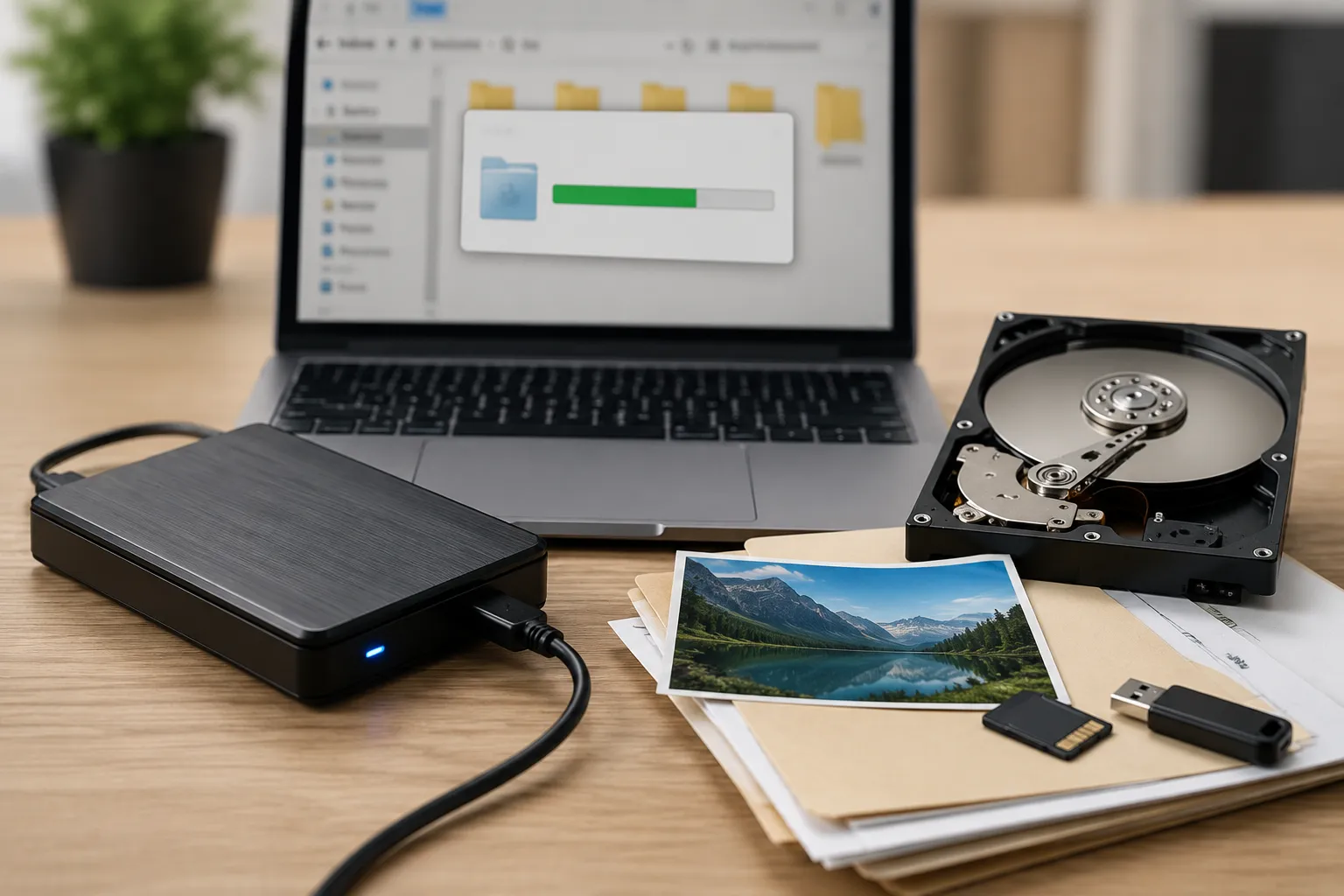
Plugging in your external hard drive only to be greeted by the dreaded Windows prompt, "You need to format the disk in drive before you can use it," is a heart-sinking moment.
The immediate fear is that clicking "Format" will instantly obliterate years of photos, documents, and backups. But what if you panicked and already clicked it? Is your data gone forever?
The short answer is no—but a massive amount of outdated advice online gets the recovery process dangerously wrong. Here is the technical truth about how formatting actually works, why you should almost never format a corrupted drive before attempting recovery, and how to safely salvage your files.
The Dangerous "Format First" Myth
Many older tech forums (and even some modern blogs) claim that if a drive becomes corrupted and unreadable, you must perform a Quick Format so your computer can recognize the drive again before you run recovery software.
Do not do this.
Modern data recovery tools do not need a drive to have a recognized file system (like NTFS or exFAT) to scan it. They are designed to bypass the operating system and read the raw binary data directly from the disk. Formatting a corrupted drive before scanning it writes new file system metadata to the hardware, which risks permanently overwriting the exact files you are trying to save.
Quick Format vs. Full Format: Why Your Data Isn't Gone
If you already clicked "Format" in an attempt to fix a corrupted drive, take a deep breath. Your data is highly likely still recoverable, depending entirely on how you formatted it.
Quick Format (The Library Index): Think of your hard drive as a massive library, and the file system (like the Master File Table) as the card catalog. A Quick Format simply throws the card catalog in the trash. The operating system can no longer see the books (your files) and assumes the library is empty, but the books are still sitting perfectly intact on the shelves.
Full Format (The Bulldozer): A Full Format doesn't just destroy the catalog; it systematically overwrites every single sector of the drive with zeroes, permanently destroying the data. Fortunately, operating systems default to Quick Formats because Full Formats take hours to complete.
Crucial SSD Warning: The "Quick Format is safe" rule primarily applies to traditional mechanical hard drives (HDDs). Modern Solid State Drives (SSDs) utilize an active memory-management feature called TRIM. When you Quick Format an SSD, the operating system may send a TRIM command that instantly clears the memory cells to optimize future write speeds. If TRIM executes, data recovery becomes virtually impossible.
How to Rescue Your Files
The moment you realize data is missing or a drive is corrupted, disconnect it. Because the operating system now views the drive as "empty space," any new file you save, application you install, or background update that runs will permanently overwrite your hidden files.
You will need specialized software designed to scan the physical sectors of the drive and rebuild files from the raw data.
TestDisk & PhotoRec (Free): Open-source and incredibly powerful, but relies on a command-line interface. Best for advanced users.
Recuva (Free): A user-friendly, Windows-only tool that is excellent for basic file recovery.
Disk Drill or EaseUS (Freemium): Polished, cross-platform options. They usually allow you to scan and preview recoverable files for free, but require a paid license to actually export the files to your computer.
When the software finds your files, it will ask where to save them. You must select a completely different storage device (like your computer's internal drive or a second external hard drive). Saving the files back onto the corrupted drive will overwrite the very data you are currently trying to extract.
How to Safely Reformat (Once Your Data is Safe)
Once you have safely extracted and verified your files on a separate device, your original external drive will still be corrupted or unreadable. Now is the time to properly reformat it so it can be used again.
On Windows 10 & 11
Connect the drive and open File Explorer.
Click on This PC and locate your external drive.
Right-click the drive and select Format....
Choose your File System (NTFS for Windows only; exFAT if you share the drive with Mac users).
Ensure the Quick Format box is checked.
Click Start.
On macOS
Open Finder, go to Applications > Utilities, and open Disk Utility.
Select your external drive from the left sidebar.
Click the Erase button at the top of the window.
Give the drive a name and choose a format (APFS for Mac-only; exFAT for cross-platform).
Click Security Options. Ensure the slider is dragged all the way to the "Fastest" side. Moving it to "Most Secure" will overwrite your drive multiple times, unnecessarily wearing down the hardware.
Click Erase.
Never Rely on Recovery: The 3-2-1 Strategy
Data recovery should be your absolute last resort. Hard drives are mechanical and electrical components with a 100% failure rate—it is never a matter of if they will fail, but when.
To safeguard your data permanently, IT professionals and the Cybersecurity and Infrastructure Security Agency (CISA) recommend the 3-2-1 backup strategy:
3 copies of your data: The original files on your computer, plus two separate backups.
2 different media types: For example, keeping one backup on an external hard drive and another on a Network Attached Storage (NAS) drive.
1 copy off-site: A cloud storage backup (like Google Drive, Backblaze, or OneDrive) to protect against local disasters like fire, theft, or floods.
Frequently Asked Questions (FAQ)
Can I recover files after a Full Format?
No. A Full Format systematically checks for bad sectors and writes zeroes across every sector of the storage drive. Once a Full Format completes, the original data is destroyed and cannot be retrieved by commercial software.
Why does my computer suddenly say my drive needs to be formatted?
This usually occurs when the drive's file system becomes corrupted due to being unplugged without safely ejecting, a sudden power loss, or degrading hardware. The OS can no longer read the partition table, so it assumes the drive is blank and offers to initialize it.
Is it safe to use a drive after it became corrupted?
If the corruption was caused by a software glitch or an unsafe ejection, reformatting it will usually make it perfectly safe to use again. However, if the drive is making clicking noises, is unusually slow, or repeatedly corrupts data, the physical hardware is likely failing. You should replace it immediately.






Comments